JBL Clip 4 Bluetooth Pairing Instructions
JBL Clip 4 Bluetooth Pairing Instructions
With your JBL Clip 4 OFF (status lamp is dark), run through this routine to pair it to your iPad, iPhone, or iPod Touch iOS mobile device.
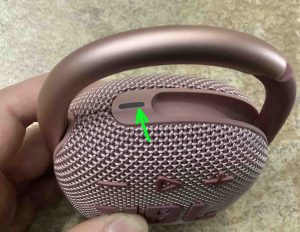
We use an iPad Air tablet for this demo.
1. Get to the Home Screen on your Source Bluetooth Device
Firstly, press the Home button to reveal the mobile iOS device’s Home screen.
2. Find the Settings App
We found ours on the second page of the iOS home screen on our iPad Air, as shown next.

3. Bring up the Settings App
Thirdly, tap the Settings app icon.
The device then shows the first page of its Settings page, as shown in the next step.
4. Go to Bluetooth Settings to Continue with JBL Clip 4 Bluetooth Pairing
Our Bluetooth settings screen displays as follows. Note that Bluetooth is enabled here. But since JBL Clip 4 speaker is currently powered OFF (is not in Bluetooth discovery mode), it does not show up in the Bluetooth Devices list. Also, we don’t see it since we’ve never paired our Clip 4 with this tablet before. See this as shown in this list of previously paired Bluetooth devices, next.

5. Turn On your JBL Clip 4
Power up the Clip 4 by fast pressing its Power button. See this, pointed at by the green arrow, in the next picture.
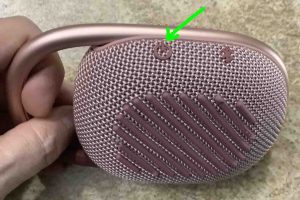
The speaker then powers up, and its status lamp flashes or glows white. If blinking, this means that it’s ready to receive a Bluetooth connection request.
But since our tablet does not know about this speaker, the Clip 4 will not pair with it automatically.
6. Put your JBL Clip 4 Bluetooth Speaker into Bluetooth Pairing Mode
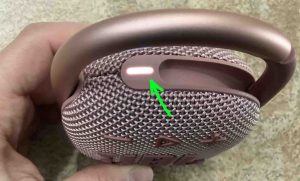
Now, to see your JBL Clip 4 speaker on your iOS or iPadOS device, place the speaker into Bluetooth discovery mode. To do that, press and release the Bluetooth button. Find this button in the next picture, pointed at by the green arrow.

When you press the Bluetooth Pairing Mode button, the Clip 4 makes a repeating single pluck guitar note sound several times. Also, the status lamp changes to a fast flashing white. See this next, as pointed at by the green arrow.
7. Find your Speaker on your Mobile Device to Continue with JBL Clip 4 Bluetooth Pairing
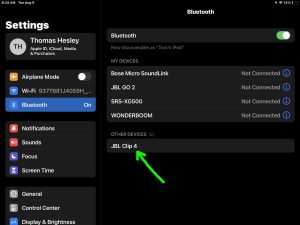
See the screen shot next. We found our Clip 4, as pointed at by the green arrow.
8. Pair with your JBL Clip 4
Tap the listed speaker in the Other Devices section of the Bluetooth devices list.
Your device then pairs with the Clip 4.
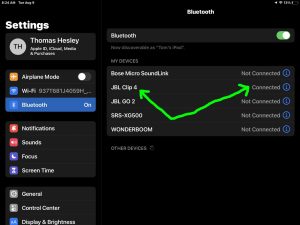
The tablet’s Bluetooth Settings screen then changes to look something like the following. Note the now-connected JBL Clip 4 entry, as pointed at by the green arrows in the next screenshot.
9. Done with JBL Clip 4 Bluetooth Pairing !
Finally, we have now successfully paired our JBL Clip 4 Bluetooth speaker with our tablet.
https://tomstek.us/
Comments
Post a Comment